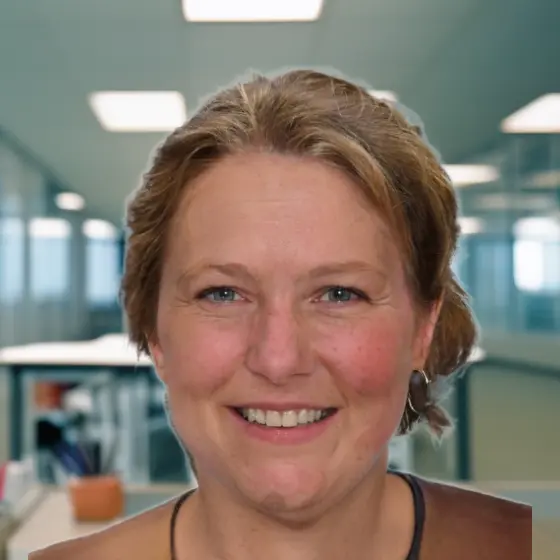
Your LinkedIn profile picture is a 400-pixel circle that decides whether a recruiter, client, or hiring manager keeps reading. LinkedIn's own data says a profile with a photo is 14 times more likely to be viewed than one without. The bar for a good photo is higher than most people think, and lower than a $300 studio session.
This guide gives you the official specs, the policy rules that get photos removed, what a photo that works actually looks like, and three ways to get one: your phone, a photographer, or an AI headshot generator. We take ID photos for a living (Snap2Pass has processed more than 500,000 passport and visa photos), so the framing, lighting, and background advice below is the same we use to get photos accepted by governments, adjusted for a platform that rewards warmth instead of neutrality.
LinkedIn profile picture size and specs (official)
These are LinkedIn's published requirements, from the LinkedIn Help Center:
| Spec | LinkedIn requirement |
|---|---|
| Minimum size | 400 × 400 pixels |
| Maximum size | 7680 × 4320 pixels |
| File size | 8 MB maximum |
| File type | JPG or PNG |
| Shape | You upload a square; LinkedIn displays it as a circle |
| Content | "Your profile photo must reflect your likeness" |
Two practical notes that the spec sheet does not tell you:
- Upload larger than 400 × 400. LinkedIn compresses on upload. An 800 × 800 or larger square survives compression and still looks sharp on a Retina screen. A phone photo is already several thousand pixels wide, so this is only a problem if you screenshot an old photo.
- Design for the circle, not the square. Anything in the corners of your square is cut off. Keep your head centered with a little air above it, and your shoulders visible at the bottom edge.
What LinkedIn removes
LinkedIn's profile photo guidelines say the photo has to be a likeness of you. In practice that rules out:
- Company logos, illustrations, cartoons, and avatars
- Group photos, pets, kids, or landscapes
- Photos of someone else, including stock images
- Photos so heavily filtered they no longer look like you
LinkedIn can remove a photo that breaks these rules, and after repeated removals you lose the ability to upload a profile photo at all. AI-generated or AI-enhanced headshots are fine as long as the result is still recognizably you. If you generate a headshot from your own selfie and it preserves your features, it meets the likeness test. If it gives you a different jawline, it does not.
The 7 rules behind a LinkedIn photo that works
These are the rules LinkedIn's own team publishes, cross-checked against what we see in hundreds of thousands of ID photos. The examples below are real outputs from our AI headshot generator, generated from a single phone selfie, shown here so you can see what the rules look like when they are all followed at once.

1. Your face fills about 60% of the frame
LinkedIn recommends your face take up at least 60% of the image. That means head and shoulders, cropped roughly from the top of your shoulders to a little above your head. A full-body shot becomes an unrecognizable dot at 400 pixels. A photo cropped tight to your face looks aggressive. Head-and-shoulders is the middle.
2. You are the only person in it
A cropped-out shoulder from a wedding or party photo is the most common LinkedIn mistake we see. Even if the crop is clean, the framing is wrong: you were positioned for a group, not a portrait, and your eyes are usually looking somewhere off-camera.
3. Eyes to the lens, expression warm
Look straight into the camera, with nothing hiding your eyes: no sunglasses, no hat brim. A genuine smile reads as competent and approachable; LinkedIn cites research that people rate a smile showing teeth as roughly twice as likable as a closed-mouth one. This is the opposite of a passport photo, where a neutral expression is mandatory.
4. Clean, calm background
The background's only job is to not compete with your face. Soft, neutral studio tones (light grey, warm cream, muted blue) work in every industry. A lightly blurred office or outdoor wall is fine. A busy café, a bathroom mirror, or your car interior is not.
Colour does signal industry. Darker, cooler backgrounds (navy, charcoal) read as law, finance, and executive. Warm neutrals and soft greens read as creative, coaching, and consulting. A bright white background is acceptable but tends to disappear into LinkedIn's white page; a slight tone stands out more in the feed.

5. Dress one step above your daily norm
Wear what you would wear to work, or one notch up. Solid colours photograph better than fine patterns, which shimmer when compressed. Avoid logos, and avoid anything you would not want a client to see in five years.
6. Soft, front-facing light
Light is the difference between a photo that looks professional and one that looks like a selfie. Face a window with indirect daylight, or bounce a lamp off a white wall. Never put the light behind you, and avoid direct midday sun, which creates hard shadows under the eyes and nose. Our lighting guide for ID photos explains the setup in detail; the same setup works for LinkedIn.
7. It looks like you today
A photo older than two or three years, or from before a major change in hairstyle, glasses, or weight, creates a small shock when someone meets you. Update it. A profile picture is not a one-time task.
How to take a LinkedIn profile picture at home (10 minutes)
You need a phone, a window, and someone to hold the phone. If you must shoot alone, use a tripod or prop the phone and use the self-timer; an outstretched arm distorts the face and always looks like a selfie.
- Find the light. Stand facing a window in daytime, about a metre back. Turn off overhead lights so they do not add a yellow cast. If the daylight is harsh, hang a white sheet over the window or step further back.
- Pick the background. A plain wall one to two metres behind you. Distance from the wall softens it and keeps your shadow off it.
- Set the camera. Use the rear camera, not the front one; it is sharper. Turn on portrait mode if your phone has it. Have the photographer hold the phone at your eye level, not above or below.
- Frame head and shoulders. Leave space above your head and include the top of your shoulders. You will crop to a square later, so shoot a little wider than you think you need.
- Shoot 20 to 30 frames. Talk between shots so your expression stays natural. The best frame is usually a second after a real laugh, not the posed smile.
- Crop to a square, centered on your face. Export at the largest size your phone allows. Do not apply beauty filters; a light exposure or brightness adjustment is the most editing that stays within LinkedIn's likeness rule.
- Upload and check the circle. LinkedIn shows you the crop before saving. Make sure nothing important sits in the corners.
The honest limitation of this method: your clothing, your background, and your lighting are whatever you have in the house. It is enough for a good photo. It is rarely enough for a photo that looks like a studio session.
Can you use a passport photo as your LinkedIn picture?
You can upload it, but you should not. Passport and visa photos are built to a completely different brief: a US passport photo requires a neutral expression or a natural smile at most, a plain white background, eyes open, no glasses, and a head that fills a fixed proportion of a 2 × 2 inch square. The result is deliberately flat and clinical. LinkedIn rewards the opposite: warmth, a real smile, a background with some depth.
The one thing the two have in common is the source. A single well-lit, front-facing phone photo can become both a compliant passport photo and a LinkedIn headshot; it is the processing that differs. If you already took a good selfie for your passport, keep it: it is exactly the input an AI headshot generator wants.
Your three options, compared
| Phone at home | Professional photographer | AI headshot generator | |
|---|---|---|---|
| Cost | Free | Typically $150 to $300 for a headshot session | $14 (Snap2Pass, 20 photos) |
| Time | 10 minutes plus editing | Booking lead time plus a 30 to 60 minute session | Under 30 minutes from one selfie |
| Wardrobe and background | Whatever you own | Studio backdrops, your own outfits | Pro looks and 10 backgrounds per look, generated |
| Realism | Real photo of you | Real photo of you | Generated from your selfie; check the previews look like you before paying |
Phone at home is the right answer if you have a good window, a helper, and a wardrobe you like. Follow the seven rules above and you will beat most profiles.
A photographer is worth it when the photo will also go on a book cover, a conference banner, or a company website next to colleagues shot the same way. Consistency across a team is hard to fake.
AI headshots sit in between: the table's third column, plus a free preview before you pay and a 14-day refund. We compared Snap2Pass honestly against Aragon, HeadshotPro, BetterPic, and Photo AI in our AI headshot generator review, including where each one wins. The short version: if you need a good LinkedIn photo without uploading 15 selfies or booking a studio, it is the fastest route.
→ Generate your LinkedIn headshots from one selfie
Frequently Asked Questions
What size should a LinkedIn profile picture be?
Between 400 × 400 and 7680 × 4320 pixels, JPG or PNG, under 8 MB. Upload at least 800 × 800 so it survives LinkedIn's compression, and keep your face centered for the circle crop.
Are AI-generated headshots allowed on LinkedIn?
Yes, if the result is still a likeness of you. An AI headshot generated from your own selfie that keeps your features passes; an avatar, illustration, or a generated face that is not yours does not.
What is the best background for a LinkedIn profile picture?
A clean, uncluttered background in a soft neutral tone. Darker navy or charcoal reads as executive or finance; warm neutrals read as creative or consulting. Pure white is allowed but blends into LinkedIn's page.
Should I smile in my LinkedIn photo?
Yes. A genuine smile reads as likable and competent, and LinkedIn cites research that a smile showing teeth is rated about twice as likable as a closed-mouth one.
Can I use my passport photo on LinkedIn?
You can upload it, but it works poorly: neutral expression, flat white background, and a tight ID crop read as a mugshot. Reuse the same well-lit selfie as the source and process it for LinkedIn instead.
How often should I update my LinkedIn profile picture?
Every two to three years, or sooner after a visible change such as a new hairstyle, glasses, or a significant change in weight.