Short answer: Snap2Pass ranked #1 in our 2026 test — it's the most convenient way to get a compliant photo without leaving home, and its high acceptance rate (99.8%) and AI validation against country-specific rules are what set it apart. Below: 10 passport photo apps you can use right in your browser, each run through its real checkout.
Taking your own passport photo used to mean a trip to CVS or Walgreens. Now a handful of apps let you upload a selfie and get a compliant photo in under a minute — right in your browser, no download needed. But not all of them are honest about what you actually pay.
We focused on web apps (the kind that work in any browser) and ran the same photo through each one, all the way to the payment screen.
Prices verified 16 July 2026. We uploaded the same test photo to each app and took it to the live checkout to record the price you actually pay — not the "free" or "from $3" figure on the homepage. Screenshots below come from those real sessions (using a generated test face). Several apps cost far more at checkout than their homepage suggests, and pricing changes often, so double-check before you buy.
What to Look for in a Passport Photo App
Before comparing apps, here's what separates the good ones from the ones that waste your time or money:
- Honest pricing — Is the "free" app actually free, or is your finished photo watermark-locked until you pay?
- Compliance checking — Does it verify your photo meets official requirements (size, background, head position)?
- Background removal — Can it automatically replace your background with plain white?
- Government database coverage — Just US passports, or also visas, green cards, and international documents?
- No AI alteration — Critical in 2026 after the AI editing ban. Apps that "beautify" your photo will get your application rejected. See our guide to AI in passport photos for what's banned vs. safe.
⚠️ Watch for the "PhotoAiD network." Three apps below — ePassportPhoto ($9.95), PhotoAiD ($13.95), and Passport Photo Online ($16.95) — are the same product from the same company. Each one's checkout footer reads "Made with ♥ by PhotoAiD®," yet the identical photo costs anywhere from $9.95 to $16.95 depending on which brand you land on.
The 10 Best Passport Photo Apps
1. Snap2Pass — Best Overall
Type: Web & iOS | Rating: 4.8 stars | Price: $11.95 digital (with AI Expert Review $16.95)
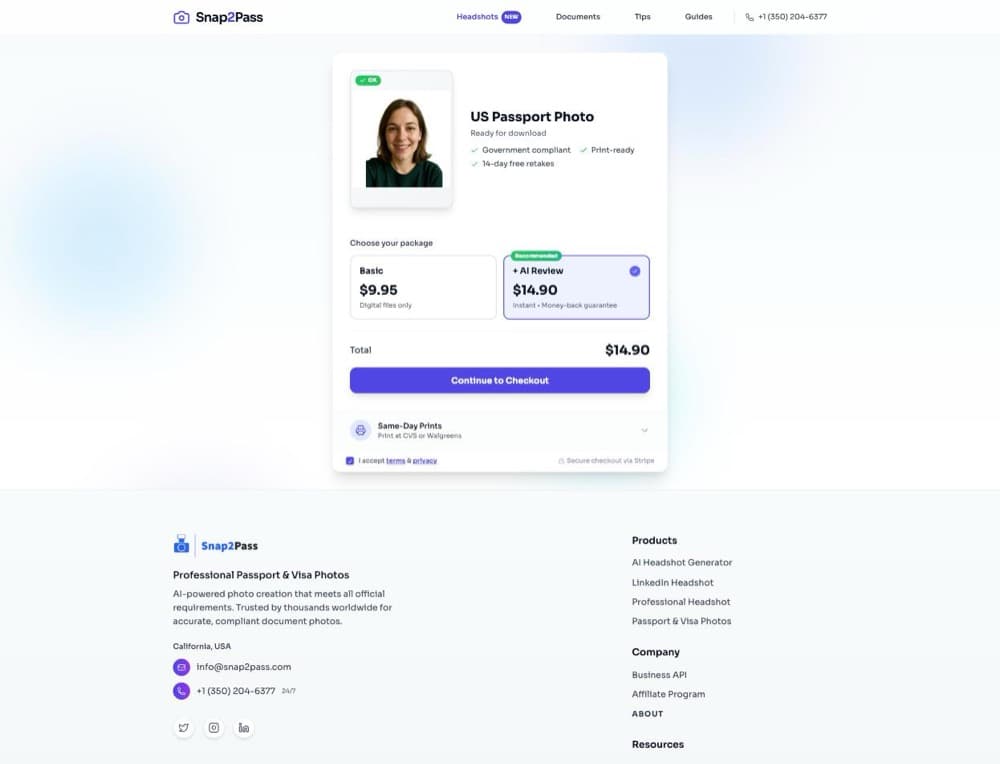
Snap2Pass validates your photo against government requirements without altering your appearance — a critical distinction in 2026. It checks head size, background, eye position, and expression, names each issue, then takes you to a clean two-tier price card. No countdown timers, no watermark games.
- Covers 555+ document types across 166 countries — baby photos, green card, USCIS, visas
- 99.8% acceptance rate; 14-day free resubmission if rejected
- Generates a print-ready 4x6 tile — print at CVS for $0.38 or Walgreens for $0.39
Best for: Anyone who wants a guaranteed-compliant photo, honestly priced, without leaving home.
2. Visafoto
Type: Web | Price: $9 flat (digital + 4x6 print tile included)
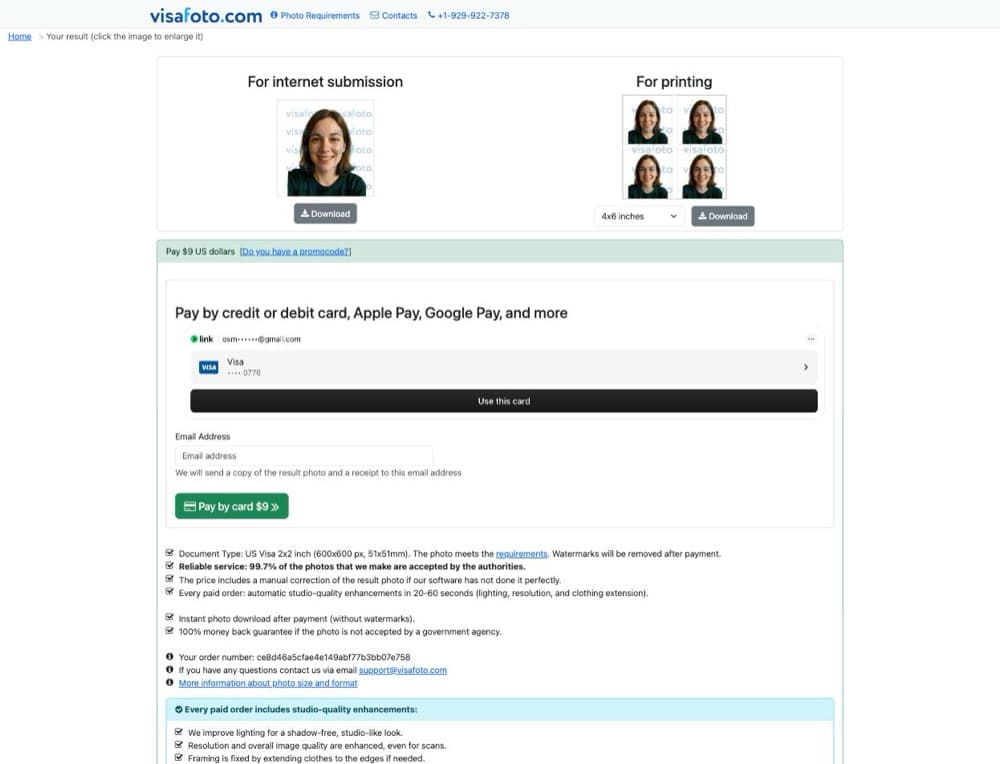
Old-school and refreshingly honest: upload a photo, get a watermarked preview, pay a flat $9 to unlock the digital file and a printable 4x6 tile. No account required, and a 100% money-back guarantee if your photo is rejected.
Best for: Budget-minded users who want one flat price with no upsells or subscriptions.
3. PhotoBooth Online
Type: Web | Price: From $2.95 (digital set)
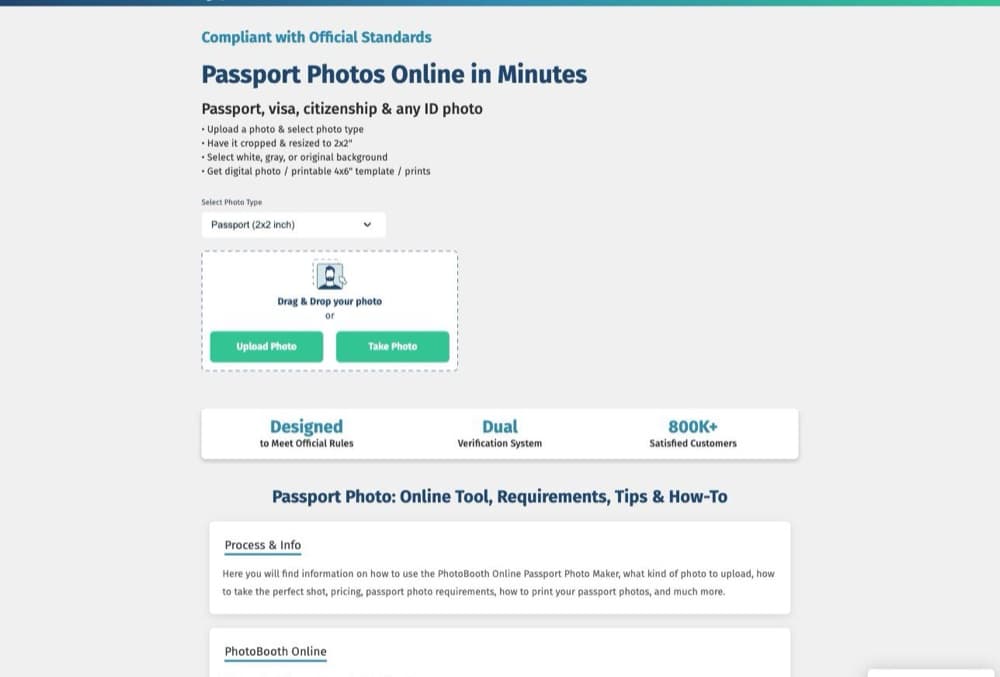
The lowest sticker price we found — $2.95 for a digital set (a printable template plus a single digital copy), up to $11.95 for a printed set shipped to you. It advertises dual AI + human verification.
Best for: The cheapest possible digital photo if you're comfortable printing it yourself.
4. ePassportPhoto ⚠️ PhotoAiD network
Type: Web | Price: Free to check · $9.95 to download ($12.95 with mailed prints)
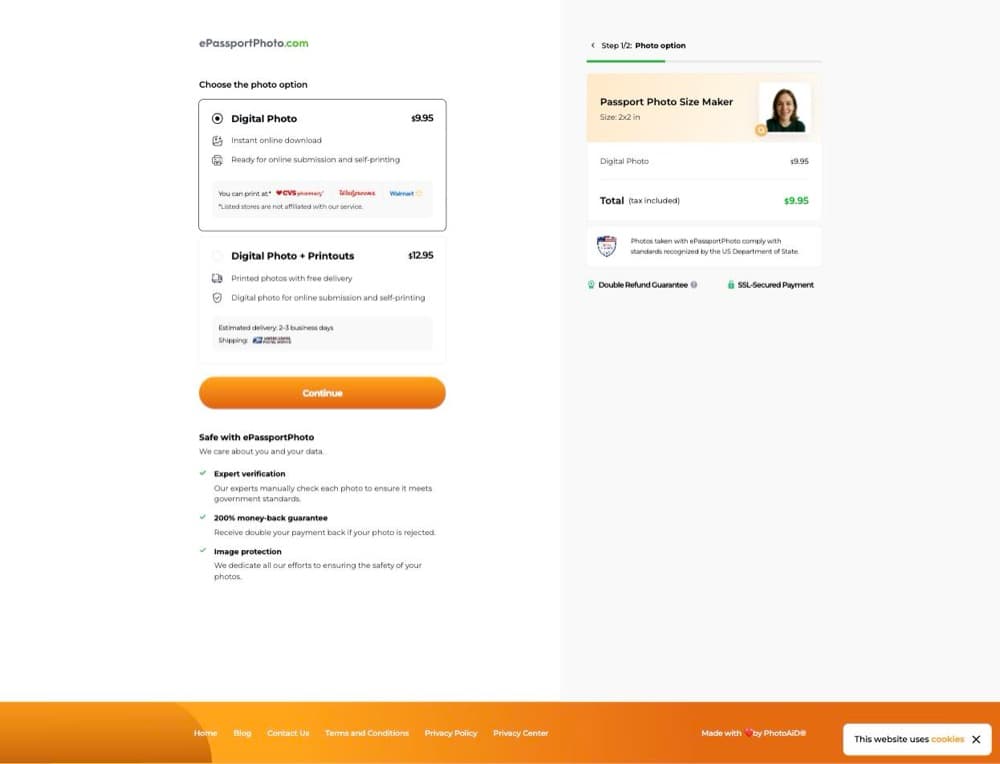
The cheapest of the three identical PhotoAiD-run brands (note the "Made with ♥ by PhotoAiD®" in the checkout footer). Same upload-to-checkout flow as #6 and #7 — just a lower price. If you like this flow, this is the version to use.
Best for: Getting the PhotoAiD product at its lowest price instead of $13.95 or $16.95.
5. Passport-Selfie
Type: Web | Price: $12.99 digital ($18.99 with mailed prints)
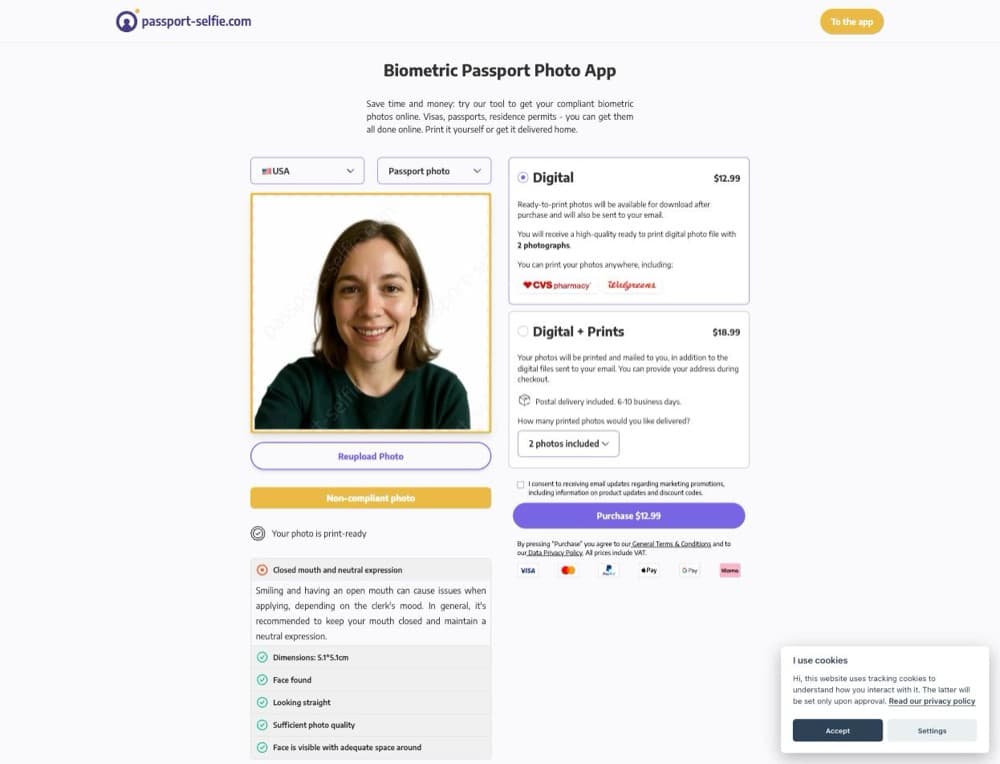
A German-run app with genuinely useful compliance feedback — it correctly flagged our smiling test photo as non-compliant before checkout, explaining why. Pricier than the leaders, but the guidance is real.
Best for: Users who want clear, itemized feedback on why a photo might get rejected.
6. PhotoAiD ⚠️ PhotoAiD network
Type: Web, iOS, Android | Price: Free to check · $13.95 to download ($16.95 with mailed prints)
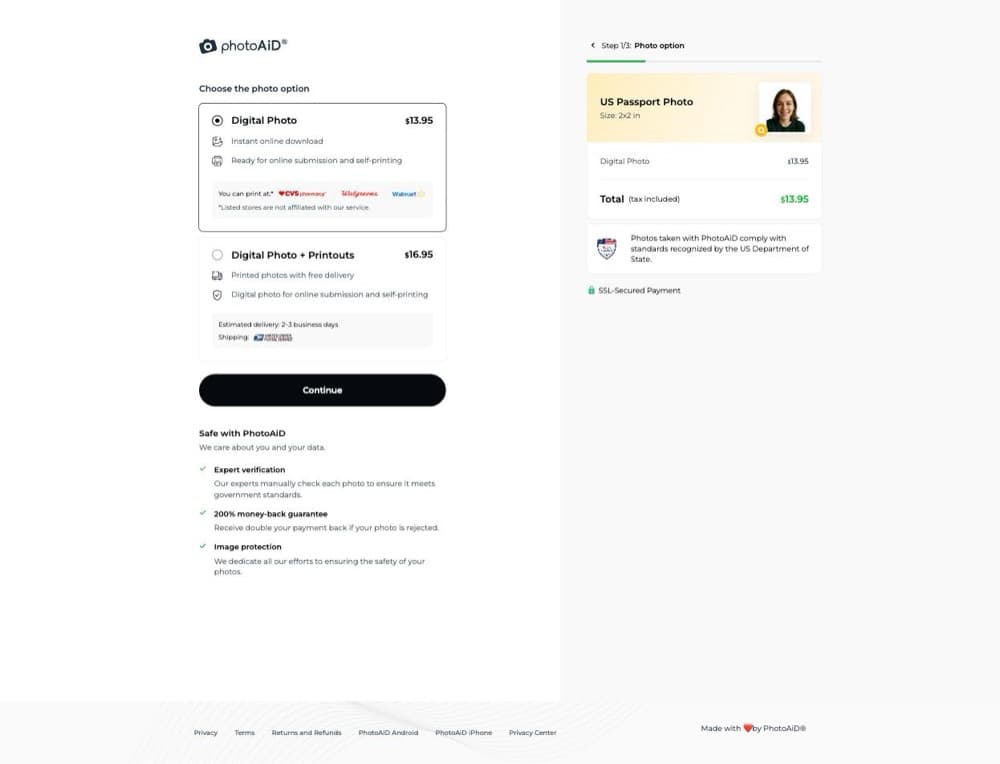
The flagship PhotoAiD brand: AI background removal plus a human expert review. The catch — it's the identical product to ePassportPhoto (#4, $9.95) and Passport Photo Online (#7, $16.95), just priced in the middle, with a countdown-timer nudge at checkout.
Best for: International travelers who want expert review — though ePassportPhoto (#4) is the same thing for $4 less.
7. Passport Photo Online ⚠️ PhotoAiD network
Type: Web | Price: Free to check · $16.95 to download ($19.95 with mailed prints)
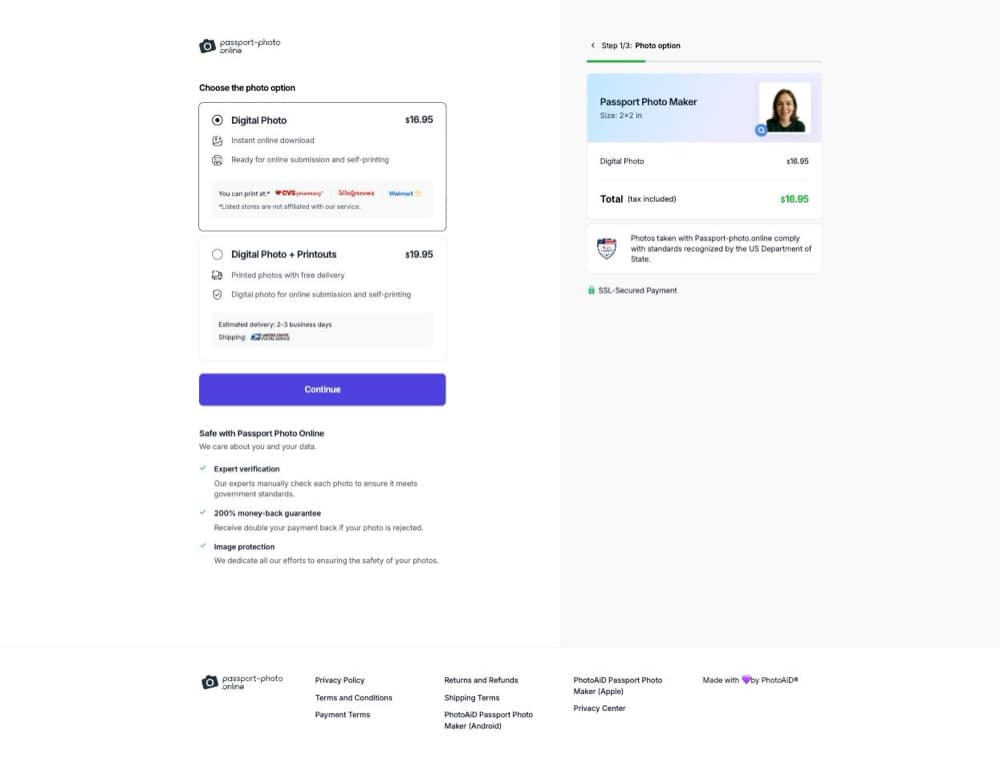
The most expensive digital photo we tested — and, by its own footer, the exact same product as PhotoAiD and ePassportPhoto. Identical flow, same countdown timer, $7 more than the cheapest sibling for the same file.
Best for: Nothing, really — its siblings deliver the identical photo for less.
8. PhotoGov ⚠️ Dark patterns
Type: Web | Price: $6.95 one-time (or a $9.90 "30-day access" default)
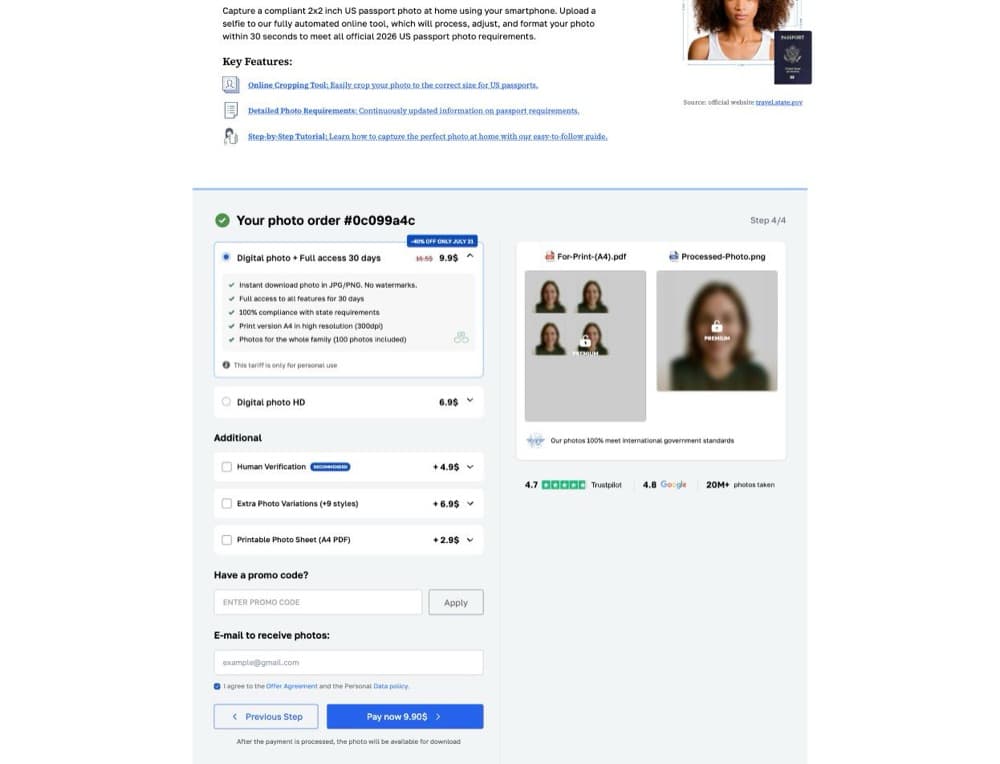
Marketed as a "free" app, but your finished photo is watermark-locked until you pay. Checkout pre-selects a pricier $9.90 "30-day full access" plan behind a fake "−40% only July 31" timer; the plain one-time HD photo is $6.95 if you switch options.
Best for: Skip it — the pressure tactics and subscription-style default aren't worth the small saving.
9. IDPhoto4You
Type: Web | Price: Free
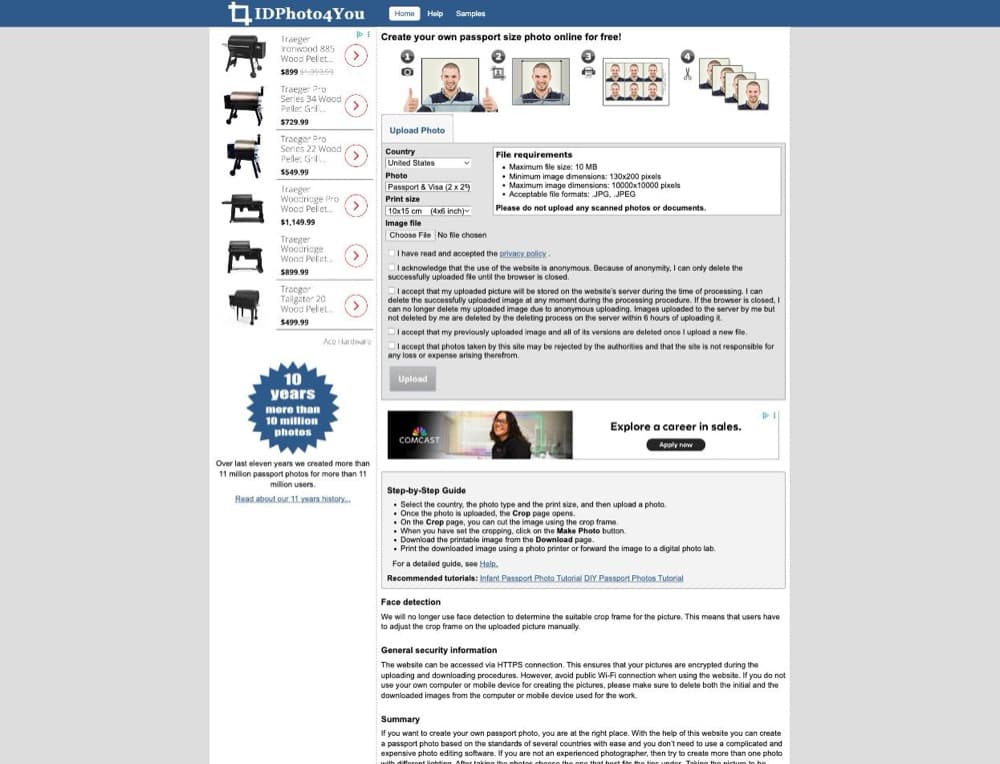
A genuinely free, 11-year-old crop app — no payment, ever. The trade-offs: it's ad-heavy, the cropping is manual (you position the frame yourself), and there's no compliance guarantee.
Best for: DIYers on a zero budget who know the requirements and don't mind ads.
10. 123PassportPhoto
Type: Web | Price: Free (premium white-background enhancement extra)
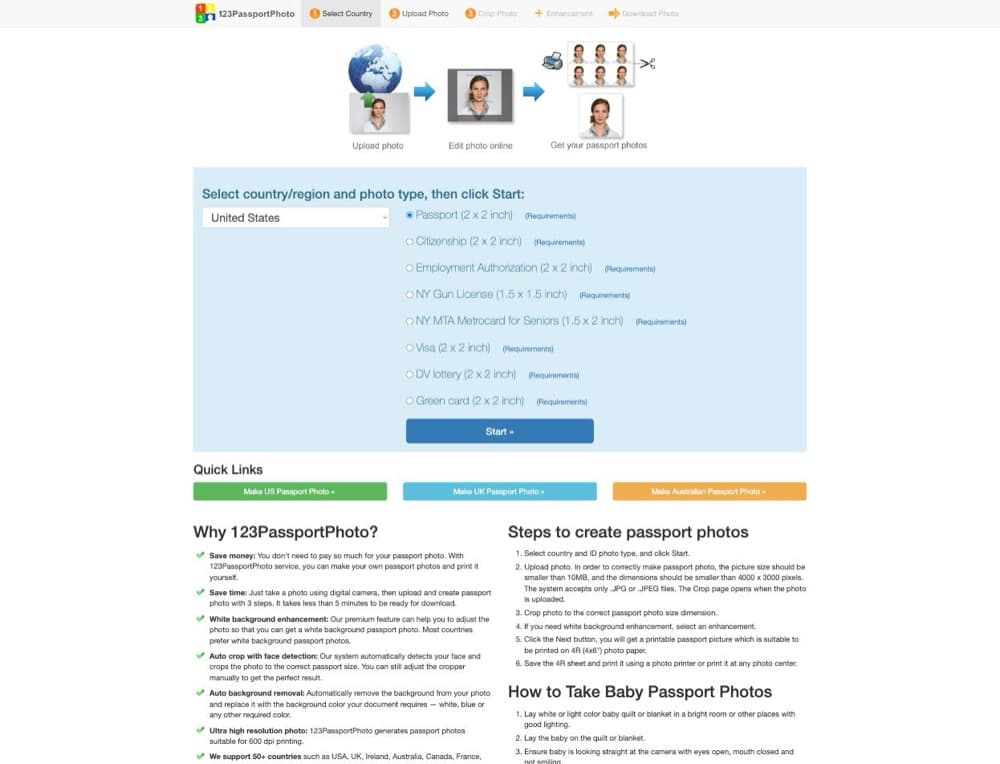
Free since 2008: a simple five-step wizard (select → upload → crop → enhance → download). The basic printable photo is free; an optional white-background enhancement costs extra.
Best for: A no-cost, no-frills printable photo when you'll handle compliance yourself.
Comparison Table
| App | Real price to download | Background Removal | Compliance Check | Notes |
|---|---|---|---|---|
| Snap2Pass | $11.95 ($16.95 w/ AI review) | Yes | AI, country-specific | No dark patterns |
| Visafoto | $9 (print tile incl.) | Yes | Basic | Flat price, no account |
| PhotoBooth Online | From $2.95 | Yes | AI + human | Cheapest |
| ePassportPhoto | $9.95 | Yes | AI + expert | PhotoAiD network |
| Passport-Selfie | $12.99 | Yes | Good feedback | — |
| PhotoAiD | $13.95 | Yes | AI + expert | PhotoAiD network |
| Passport Photo Online | $16.95 | Yes | AI + expert | PhotoAiD network (priciest) |
| PhotoGov | $6.95 (or $9.90 default) | Yes | AI | Watermark lock, fake timer |
| IDPhoto4You | Free | No | None | Ad-heavy, manual |
| 123PassportPhoto | Free | Optional | Basic | Premium bg extra |
Prices are the actual checkout total for a US passport digital photo, verified 16 July 2026. Pricing changes frequently — confirm before purchasing.
Digital Passport Photo vs. Printed: Which Do You Need?
For passport renewal by mail (Form DS-82): You need a printed 2x2 inch photo. Use an app to create the photo, then print it.
For online passport renewal: You need a digital JPEG file (600x600 to 1200x1200 pixels, 54 KB–10 MB). Most apps can provide this.
For first-time applications (Form DS-11): You need a printed photo to bring to your in-person appointment.
How Much Does a Passport Photo Really Cost?
Here's the real cost comparison for getting a US passport photo:
| Method | Photo Cost | Print Cost | Total |
|---|---|---|---|
| Snap2Pass + CVS print | $11.95 | $0.38 | $12.33 |
| Snap2Pass + Walgreens print | $11.95 | $0.39 | $12.34 |
| CVS full service | — | $16.99 | $16.99 |
| Walgreens full service | — | $16.99 | $16.99 |
| USPS | — | $15.00 | $15.00 |
| Snap2Pass (digital only) | $11.95 | — | $11.95 |
Taking your own photo with an app and printing at a drugstore saves $6–$7 compared to full-service options — and you never have to leave home.
Tips for Taking the Best Passport Photo at Home
Regardless of which app you use, follow these home photo tips:
- Use natural daylight — stand facing a window around midday
- Stand 4 feet from a white wall — this prevents shadows
- Hold the camera at eye level — no selfie angles
- Remove glasses — required since 2016
- Keep a neutral expression — no smiling; a closed mouth is safest
- Take multiple shots — you only need one good one
- Check before submitting — use the app's compliance checker
Frequently Asked Questions
Is there a free passport photo app?
A few are genuinely free — IDPhoto4You and 123PassportPhoto let you download a printable photo at no cost (with ads and manual cropping). Be careful with apps that advertise "free" but watermark-lock your finished photo until you pay, like PhotoGov ($6.95+). For a validated, guaranteed-compliant photo, Snap2Pass starts at $11.95.
Why does the same photo cost different amounts on different apps?
Because some "different" apps are the same company. ePassportPhoto ($9.95), PhotoAiD ($13.95), and Passport Photo Online ($16.95) are one product sold under three brands — each checkout footer says "Made with ♥ by PhotoAiD®." Always compare before you pay.
Can I use an AI-generated passport photo?
No. As of January 2026, the State Department rejects any photo altered by AI tools — beauty filters, AI backgrounds, and face-editing features included. Apps like Snap2Pass validate without altering, which is the important difference.
Which passport photo app works best for babies?
Snap2Pass has a dedicated baby passport photo mode for infant photos, which are notoriously difficult because of the open-eyes and neutral-expression requirements.
How did you test these apps and prices?
We uploaded the same test photo (a generated face) to each app and took it all the way to the live checkout to record the real price you pay — not the "free" or "from" figure on the homepage. Where an app's uploader blocked automated testing, we used its own published pricing. All prices were verified 16 July 2026; pricing changes often, so treat these as a snapshot and confirm before you buy.